RTK Scanning Guide: Using the Emlid Reach RX or RX2 with Dot3D Prime (for real-time corrections)
1. Verify you have all required components:
1. Emlid Reach RX2 (or RX)
2. Emlid Scanning Kit / Handle
3. SP Connect Phone Case / Mount
4. iPhone Pro (or Pro Max)
5. Dot3D Prime Subscription (or trial)
6. Corrections Service / Credentials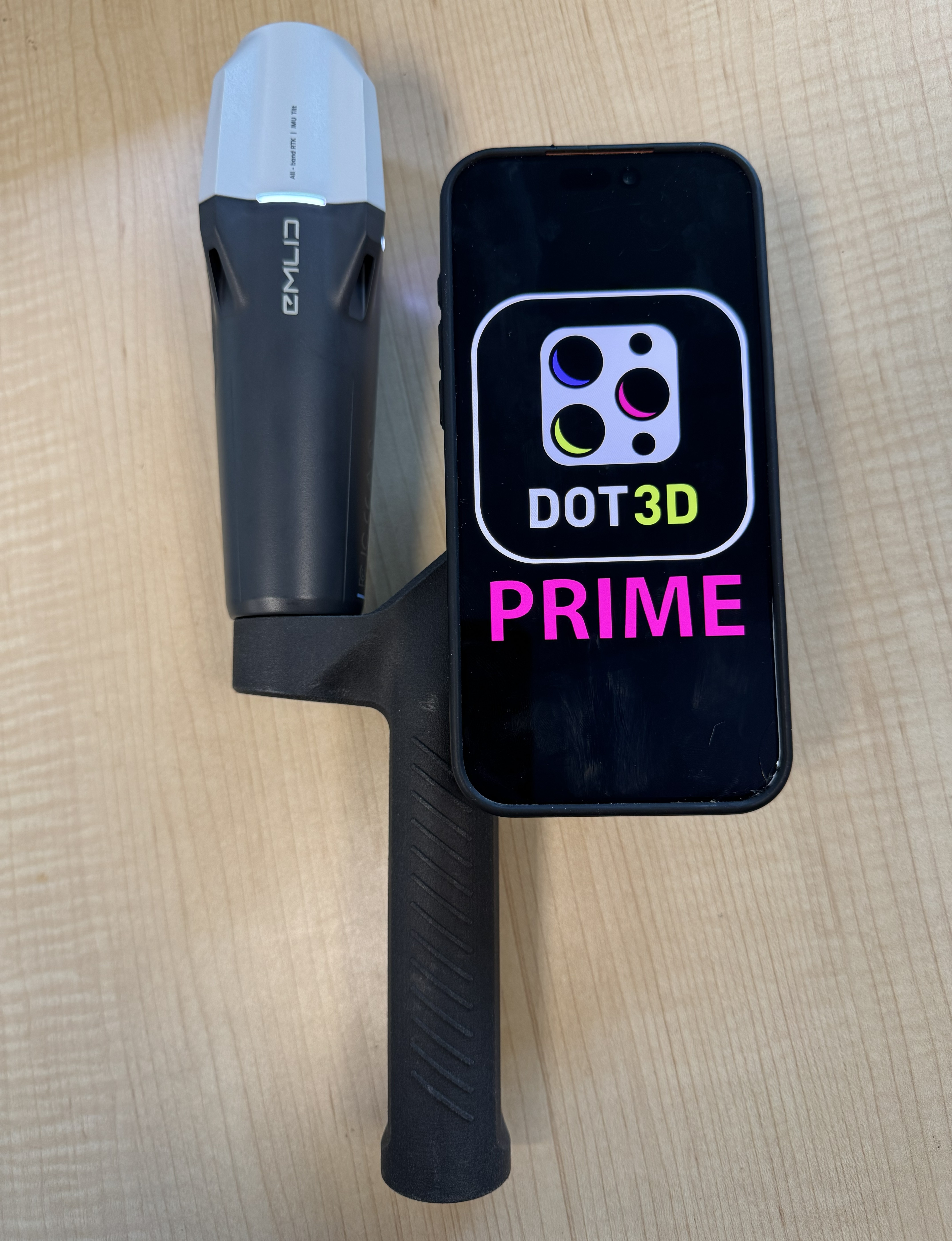
1. Emlid Reach RX2 (or RX)
2. Emlid Scanning Kit / Handle
3. SP Connect Phone Case / Mount
4. iPhone Pro (or Pro Max)
5. Dot3D Prime Subscription (or trial)
6. Corrections Service / Credentials
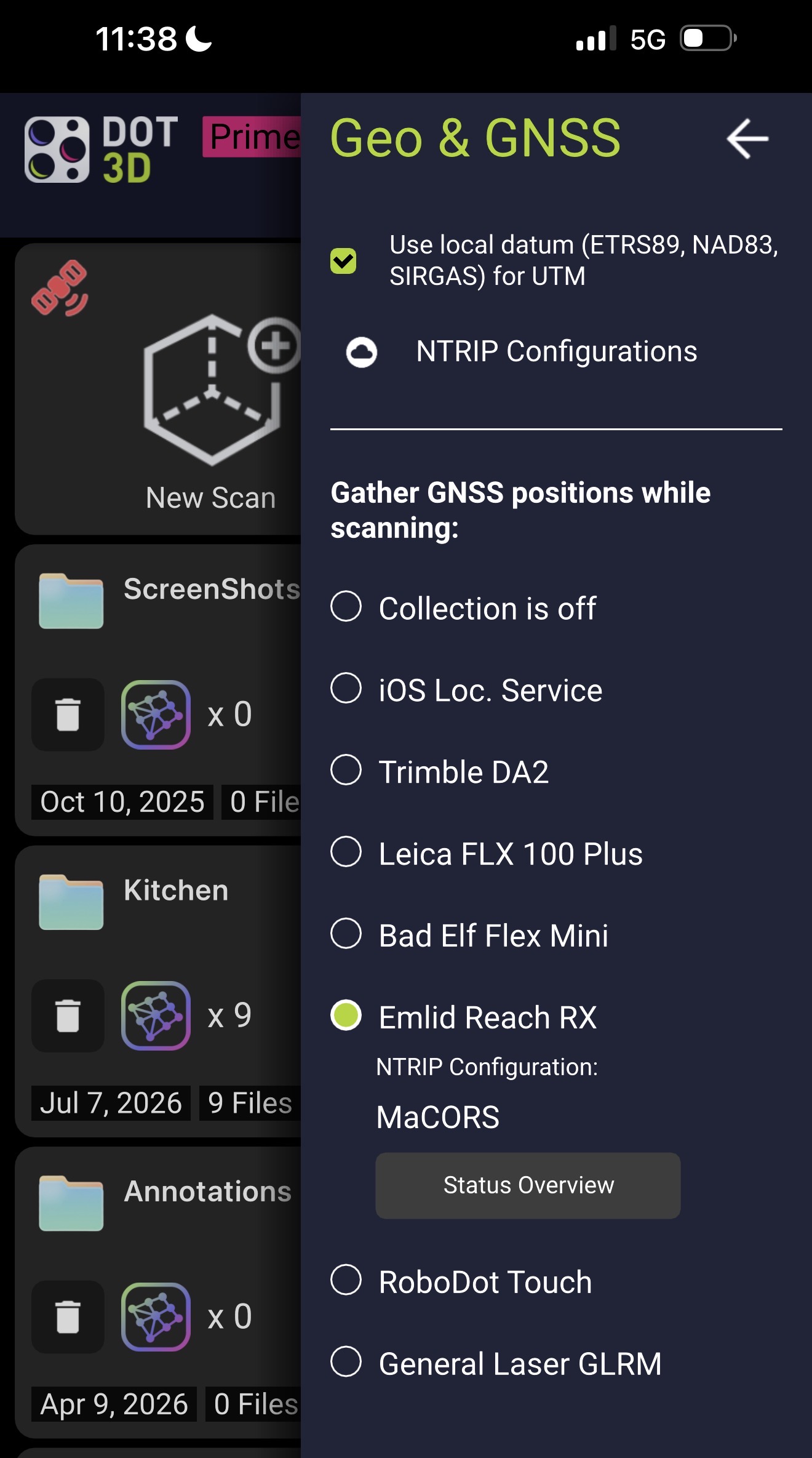
3. Enter your NTRIP configurations directly into Dot3D from Settings > GNSS & Geo Settings > NTRIP Configurations.
You should find your NTRIP Caster Access Data, as well as the correct Mount Point, in your correction provider's documentation. Typically you will also find the corresponding Coordinate Reference System (CRS) in there, which should be set under "Reference System" on the second page of the NTRIP configuration dialog. If no CRS is provided, you may use "Auto/Guess".
4. Navigate to Settings > GNSS & Geo Settings (inside Dot3D), select "Emlid Reach RX", and test your connection via the "Status Overview" button.
5. Step outside (if you haven't already) and wait for a strong signal before starting your scan (RTK Fix). Hold the device still to help acquire more satellites / better signal.
6. Once you're ready, start scanning as usual. The green satellite button can be toggled on/off at any time to display signal quality.
7. After completing a scan with real-time RTK/GNSS enabled, make sure to "Fit GNSS Trajectory" before optimizing. This can be accessed from either Settings > GNSS or from the Optimization window.
8. Now when you optimize, you'll see the GNSS constraints bar activated. This should typically be left on its default influence strength.
9. Once ready to move the data out of Dot3D / off-device, make sure to select GNSS as your output transform (during Save/Export process).
Tip: If you are running into any issues with your connection in Dot3D, try using the same configuration in the Emlid Flow app to see what happens there. You should normally see the same results both places. If issues persist, contact Dot3D support.